Installing the App
The Million Metres app lives on the web and is not available through Google Play or the App Store.
Go to the app by following this link or scanning the QR code from your mobile device

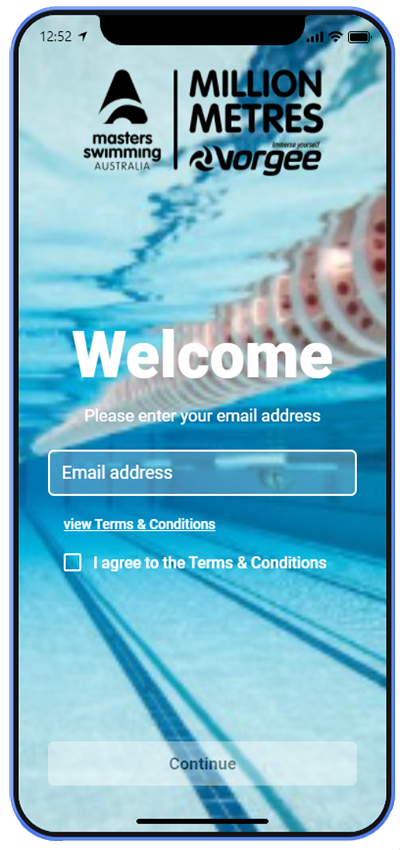
- On the sign-in screen, enter your email address.
- You will be required to indicate that you agree to the ‘Terms & Conditions.
After tapping the Continue button, a PIN will be sent to the nominated email address, which must then be entered in the subsequent screen.
…. view Terms & Conditions - After successfully logging in for the first time, your experience will be different depending on your status:
- If you are new to the Million Metres programme;
- If you are new to the Million Metres programme;
You can now start entering your swims directly on your mobile device from poolside, or any time you like.
Saving the App to your device
The Million Metres app lives on the web – but can still be added to your home screen like regular apps.
Important note: adding the Million Metres app to your phone’s Home Screen is essential for easy regular access – your profile will be remembered, otherwise you will need to sign in each time.
Some phones may give a pop-up prompt to do so, but you can add the app to your Home Screen at any time – select your device to view instructions:
Android phone or tablet
- When opening the app from the URL or the QR code, it will open in the “Chrome” browser app.
 Tap the menu icon in upper right-hand corner.
- Select “Add to homescreen.”
- You’ll be able to enter a name for the shortcut and then Chrome will add it to your home screen.
iPhone or iPad
- When opening the app from the URL or the QR code, it will open in the “Safari” browser app (note that this will not work from the iOS “Chrome” app).
 Tap the icon along the bottom of the Safari window to open a drop-down menu.
- Select “Add to Home Screen.” The Add to Home dialog box will appear, with the icon that will be used for this website on the left side of the dialog box.
- Enter the name for the shortcut using the on-screen keyboard and tap “Add.” Safari will close automatically and you will be taken to where the icon is located on your iPad’s desktop.
Windows desktop or tablet
- Open the app from the QR code or the link provided in the “Chrome” browser.
- Tap the menu icon in upper right-hand corner.
- Select “Install Million Metres”. An icon will be added to your Desktop.
Using the App
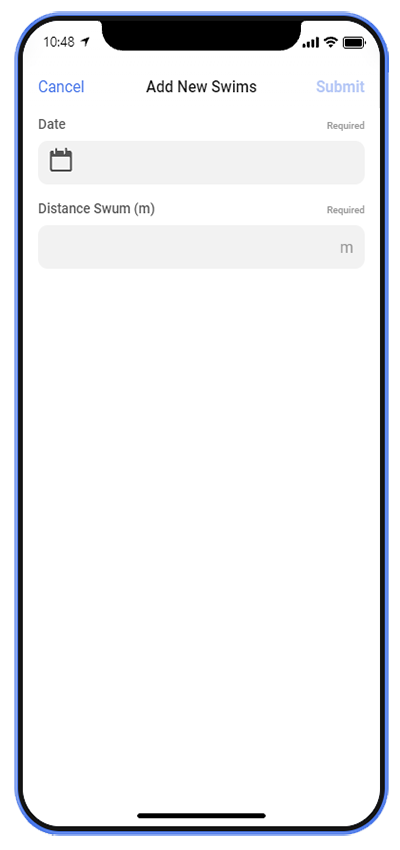
 Tap on the floating blue button to open the Add New Swims form.
- Here you can enter the date and distance for a new swim, and in a few seconds you will see the distance added to to total on the My Profile tab
That’s all there is to it – how easy is that!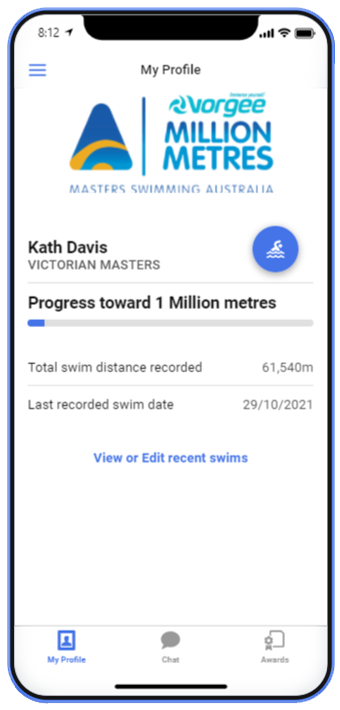

Once your recorded Total Swim Distance reaches a milestone in the program, you will be automatically prompted with a link to submit an online application for recognition of your achievement.
Other features
 Tap the “Awards” tab tab at the bottom of the screen, and then one of the buttons to view: